
Choose what your site shows
Order the sections, answer the questions clients ask, and say where you travel.
5 minutes 4 steps
- 1
Open Sections
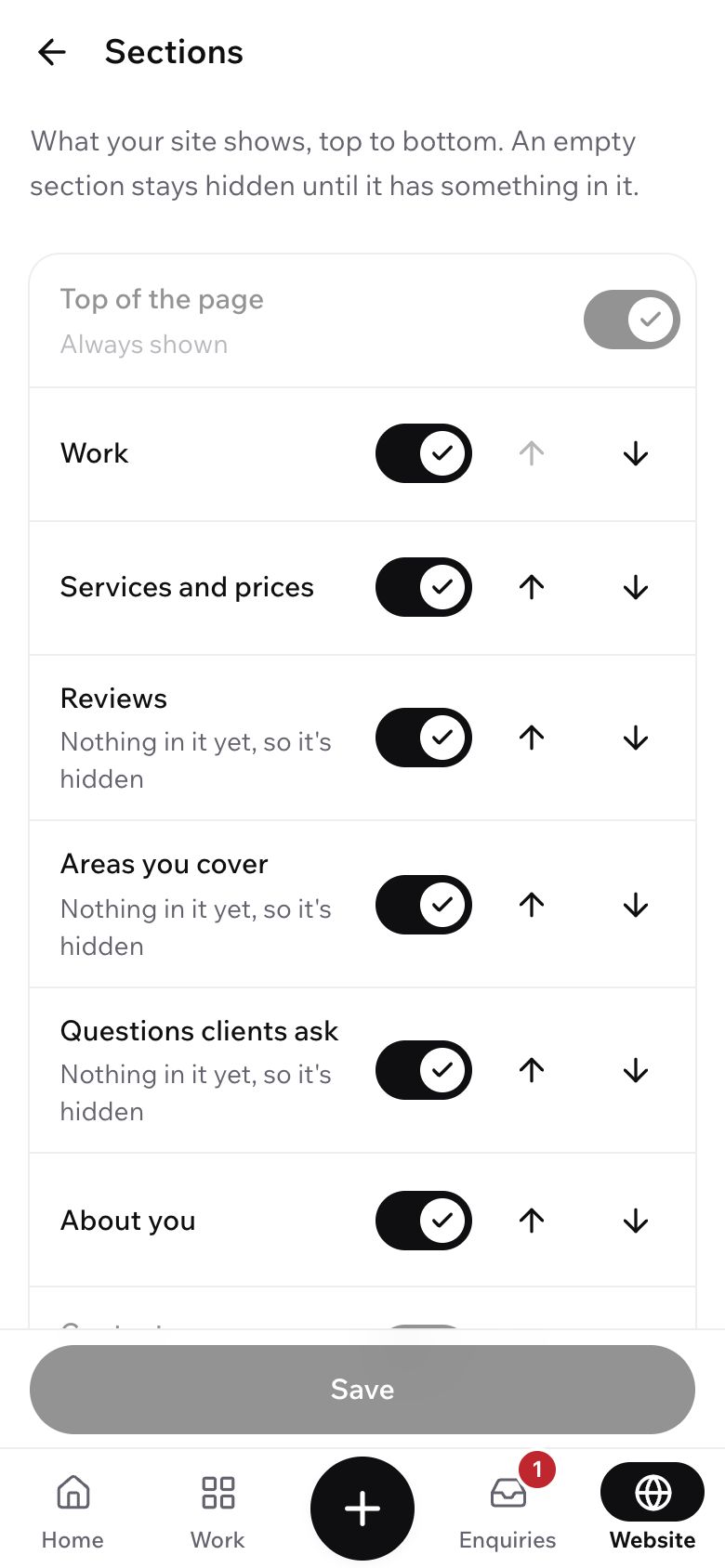
Tap Website at the bottom, then Sections. It lists what your site shows, from top to bottom.
- 2
Show, hide and move
Tap the switch next to a section to show or hide it. Tap the up and down arrows to move it. Tap Save.
A section with nothing in it stays hidden on its own until you fill it, so you don't need to hide it.
- 3
Answer the questions clients ask
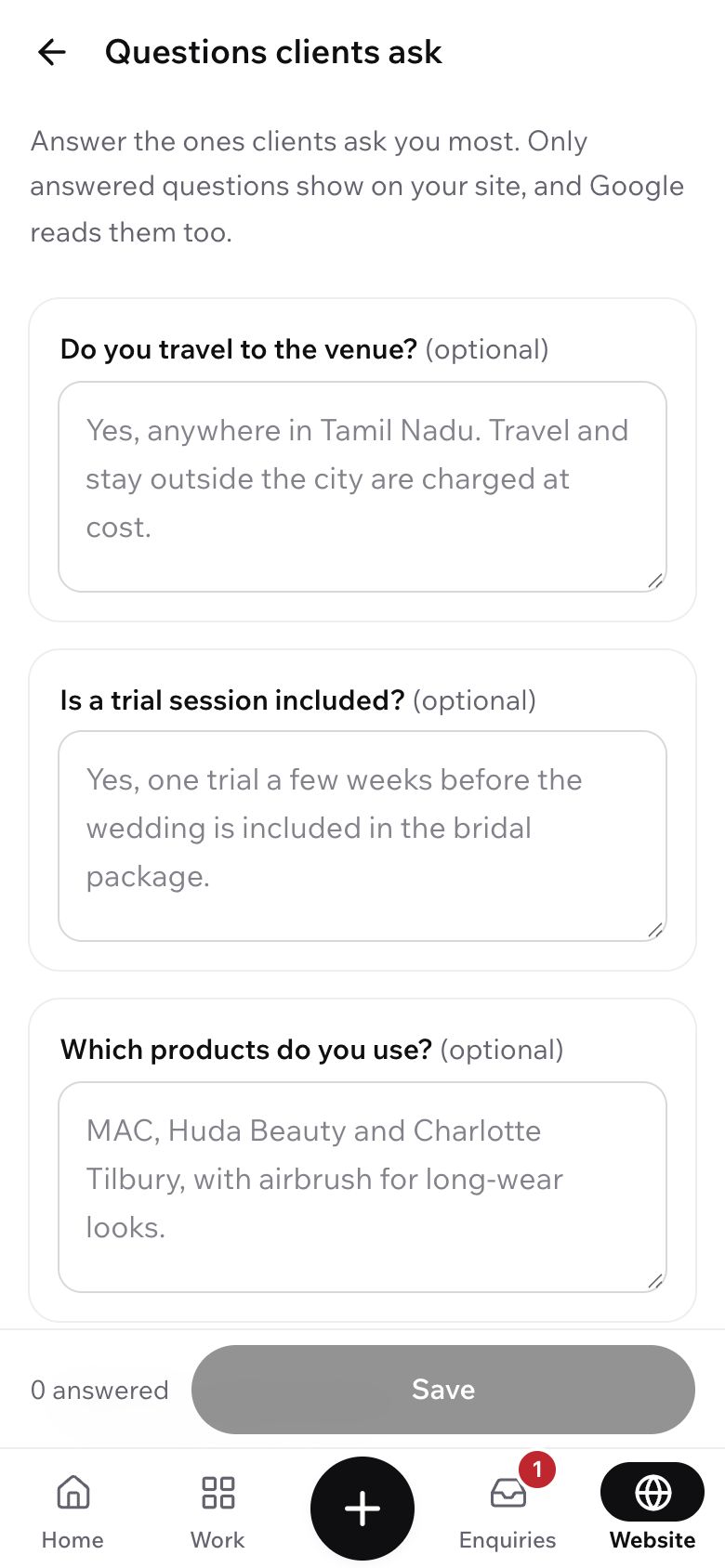
Back on Website, tap Questions clients ask. Type answers to the ones clients ask you most; the grey text is an example. Tap Add your own question for anything else, then tap Save.
Only answered questions show on your site, and Google reads them too.
- 4
Say where you travel
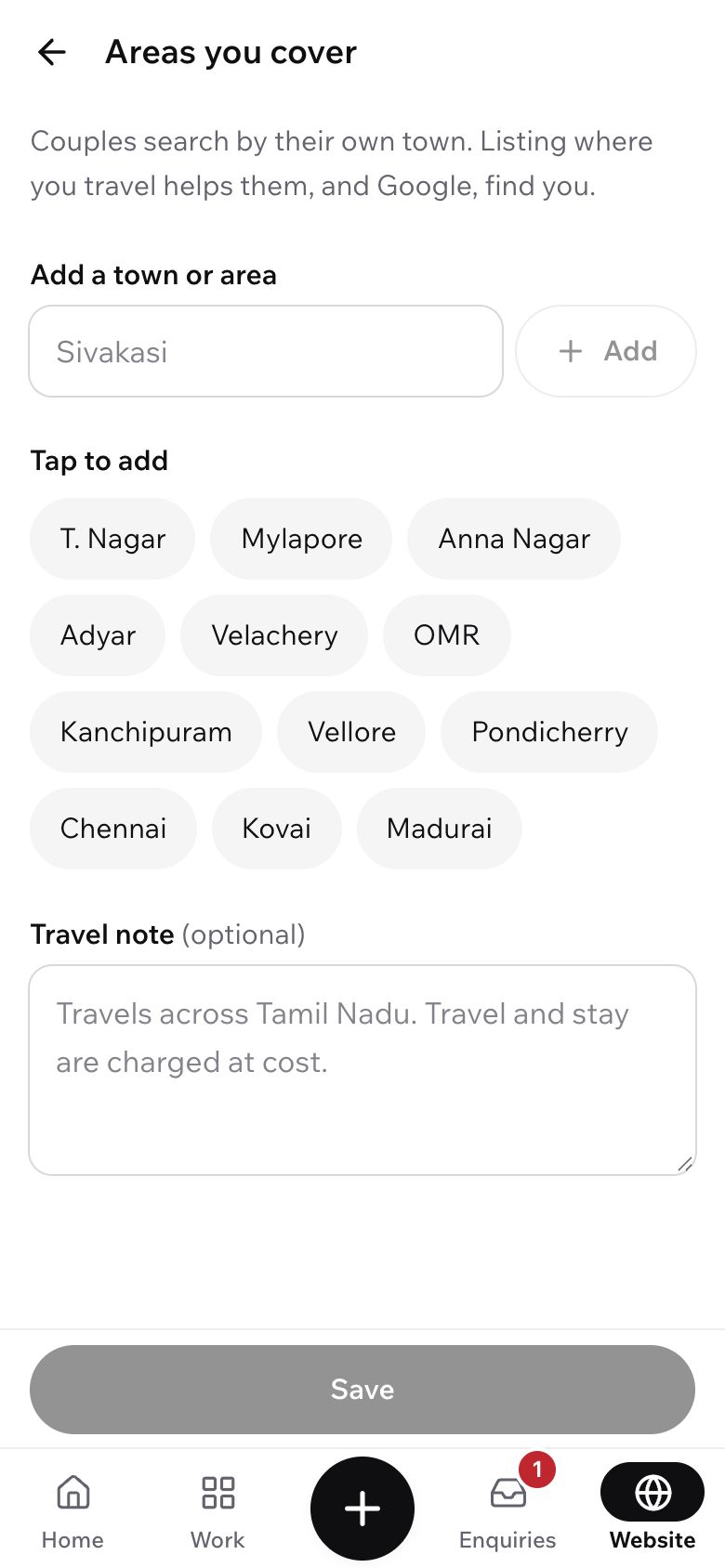
On Website, tap Areas you cover. Tap a town under Tap to add, or type one and tap Add. Add a travel note if you charge for travel, then tap Save.
Couples search for their own town, so list the places you go most.
What's next?
- Get found on GoogleA free Google profile, linked to your site, so clients near you find you on Maps.
- Choose or change your lookPick a different design. Your work and words come with you.
Still stuck?
Write to us and a real person will help. A screenshot makes it quicker.
Email hello@showbook.in