
Show your hours and directions
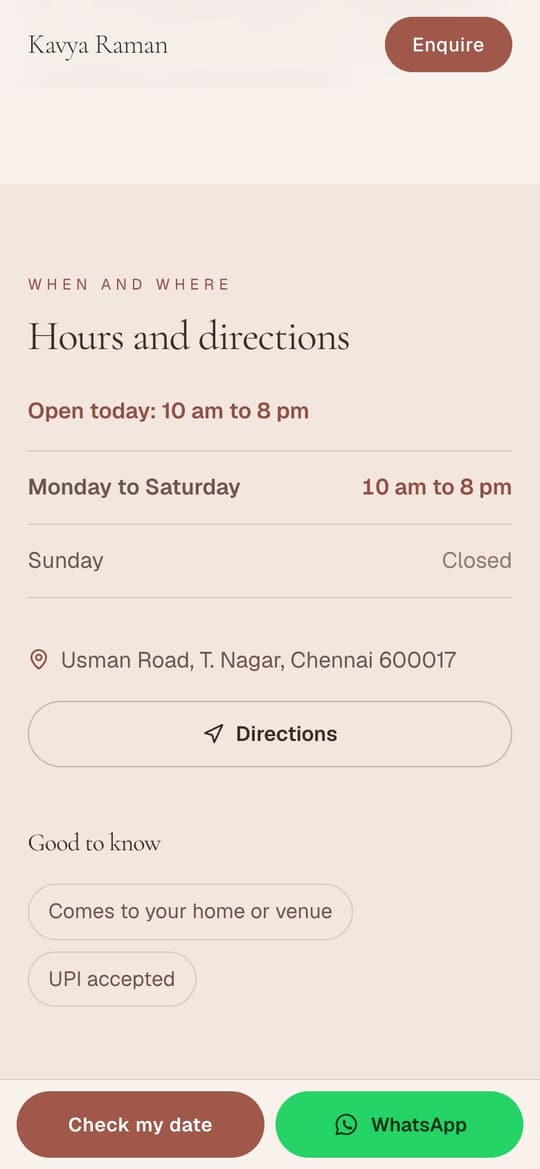
When you're open, a Directions button and good-to-know labels, so clients don't have to ask.
3 minutes 4 steps
- 1
Open Hours and directions
Tap Profile at the bottom, then Hours and directions.
- 2
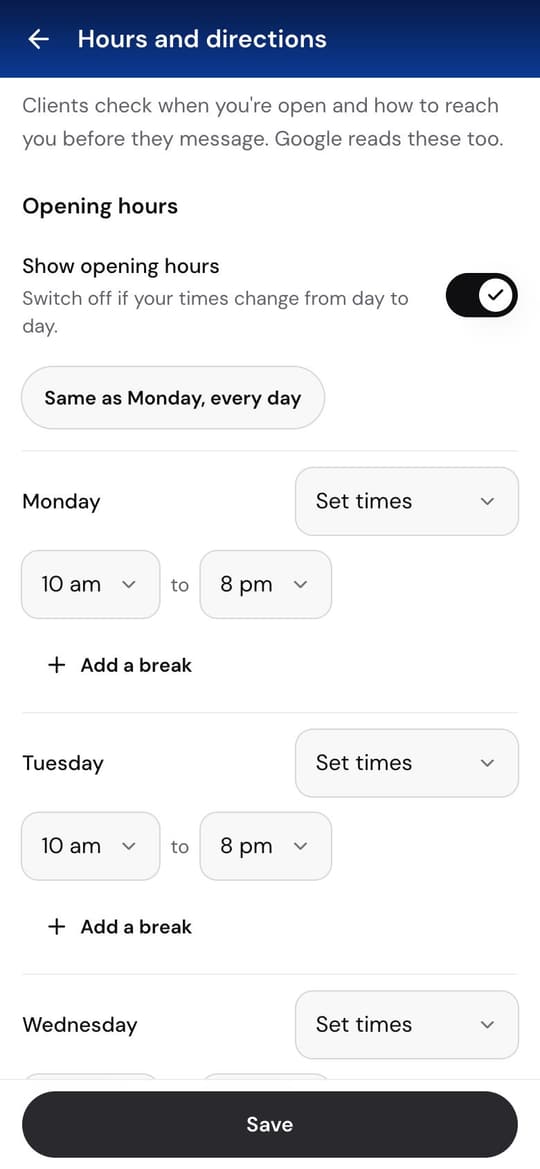
Set your hours
Switch on Show opening hours. For each day, choose Set times, Open all day or Closed, and pick the times. Same as Monday, every day copies Monday to the whole week; Add a break gives a day two times, like 10 am to 1 pm and 4 pm to 9 pm.
If your times change from day to day, leave hours off and tick By appointment below.
- 3
Show where you work
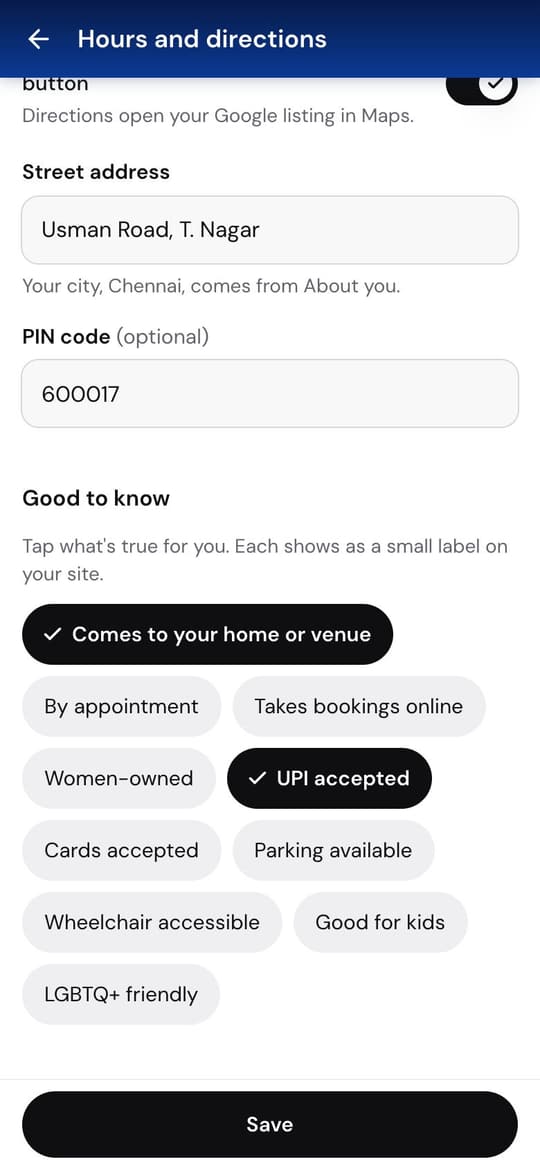
Switch on Show my address and a Directions button, and type your street and PIN code. Your city comes from About you. Clients tap Directions and Google Maps opens with the way to you.
Working from home? Leave it off. Your hours and labels still show.
- 4
Tick what's good to know, and save
Tap the labels that are true for you, like Comes to your home or venue or UPI accepted, then tap Save. Your site shows them straight away, and Google reads your hours too.
Still stuck?
Message us and a real person will help. A screenshot makes it quicker.