
Design your page in Studio (Pro)
Your own colours, headline type, a layout for every section and blocks, on a computer.
5 minutes 9 steps
- 1
Open Studio on a computer
On a laptop or desktop, open studio.showbook.in in a new tab. You can also tap Profile, then Studio, from your phone and open the link on a computer. Sign in with the same email or Google account you use for Showbook.
Not on Pro yet? Open Studio anyway and try everything on your own page: a line at the top says you're trying it. Publishing is the part that needs Pro. The first time, a short tour lights up each part; the question mark at the top starts it again.
- 2
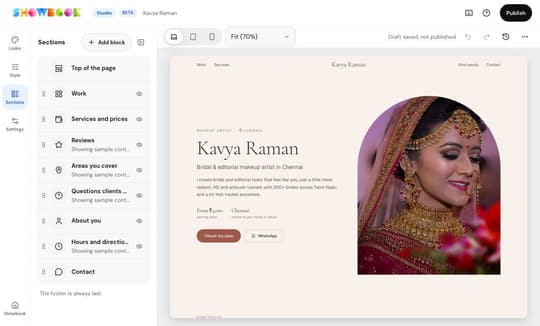
Pick a section
Your sections are listed on the left, and your real page is in the middle. Click a section in either place to select it. The one you picked gets a blue outline on the page.
- 3
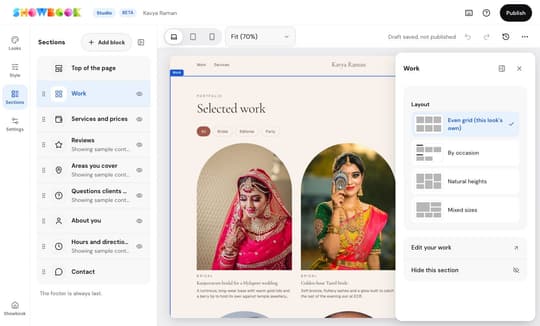
Choose a layout
On the right, pick a layout from the small drawings: for your work, your services, your reviews, your story, your questions and more. The page redraws at once, and nothing is public yet.
Use the three buttons at the top to see the page at desktop, tablet and phone widths.
- 4
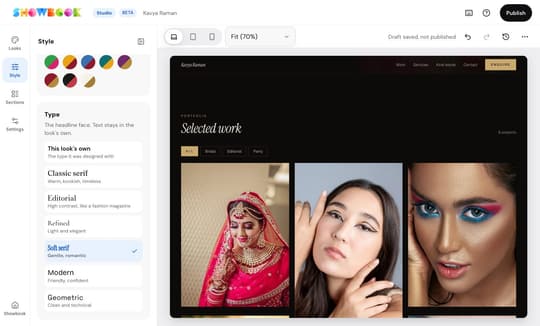
Choose your colours and headline type
On the narrow bar at the left, tap Style. Pick a colour for your buttons and details, or a silk pair: a border colour with its body colour, like a saree. Under Type, pick one of six headline types. Tap Looks to try another look. Your words, photos, colour and type stay when you switch look, and the layouts that still fit stay too. Tap Shuffle for a fresh combination, and undo if you don't like it.
If you haven't added your photos or prices yet, Studio shows sample ones so every look is fully drawn. Samples on, at the top of the page, turns that off. Nothing here is public until you publish.
- 5
Move and hide sections
Drag a section by its handle to move it. Tap the eye to hide it. The top of the page stays first and the footer last.
Made a mistake? Undo and redo are at the top, or press Ctrl Z (Cmd Z on a Mac).
- 6
Add a block
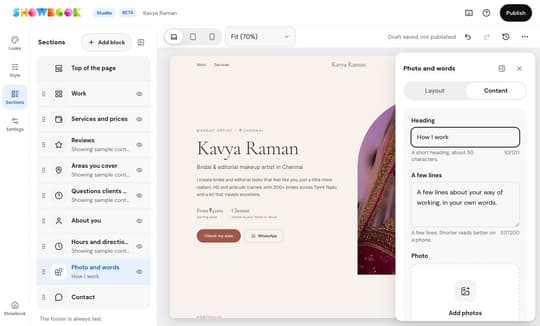
Tap Add block and pick one: Photo and words, Photo set, Video, Numbers or Banner. Choose a layout, type your words and add photos. It appears on the page as you type.
- 7
Change your words, prices and details
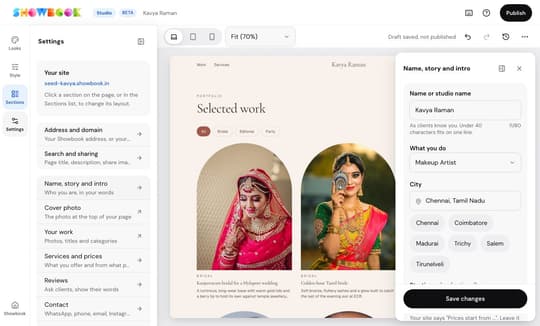
Tap Settings on the left bar, then pick Name, story and intro, Services and prices, Reviews, Contact, Hours and directions, Areas you cover, Booked dates or Questions clients ask. The form opens on the right, beside your page. Press Save and your page redraws with the new words.
You can also click a section on your page: its panel has a Layout tab and a Content tab. Your photos and cover photo still open in Showbook.
- 8
Set your address, search words and share image
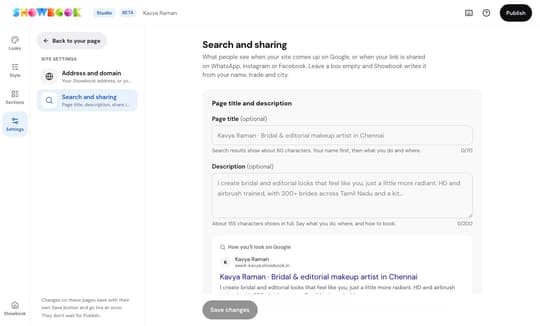
Tap Settings on the left bar. Address and domain changes your Showbook address or connects your own domain. Search and sharing is where you write the title and description people see on Google, upload the picture that shows when your link is shared on WhatsApp or Instagram, and add your own favicon, the small icon in the browser tab. You see each one as you type.
These save with their own Save button and go live at once. They don't wait for Publish.
- 9
Publish
Everything you change is saved as a draft. When the page looks right, tap Publish. You see a list of what will change, then tap Publish now and your site shows it. To throw a draft away, tap Throw away this draft while nothing is selected.
If Pro ends, your site keeps the design you last published. Your blocks are hidden and kept for when Pro is back, and you can't change the design until then. Point at a button on the left bar to peek at its panel, or tap it to keep it open beside the page; tap again to put it away. A section's settings float over the page, with a pin to dock them. Preview opens your page in a new tab as a visitor sees it. Saved versions, at the top, keep a point you can come back to. Press ? to see the keyboard shortcuts. You can try Studio on any plan; publishing from it, and adding your own blocks, are part of Pro.
Still stuck?
Message us and a real person will help. A screenshot makes it quicker.